Getting Started
System Requirements
To ensure an optimal experience with aitios®, the following system requirements should be met:
Hardware Requirements
A minimum screen resolution of 1920x1080 (Full HD) is required. Accessing aitios® from smartphone devices is currently not supported.
Software Requirements
The platform is accessible through modern web browsers. For the best performance, we recommend using the latest version of Google Chrome. Ensure that JavaScript and cookies are enabled (default settings).
Network Requirements
A fast and reliable internet connection is strongly recommended when uploading or downloading genomic data files. A minimum broadband connection of 10 Mbps is advised. Faster speeds are beneficial for uploading data files more quickly and for more efficient report generation.
Accessing the aitios® Platform
To get started using the aitios® platform, navigate to app.aitiologic.com. The landing page is shown.
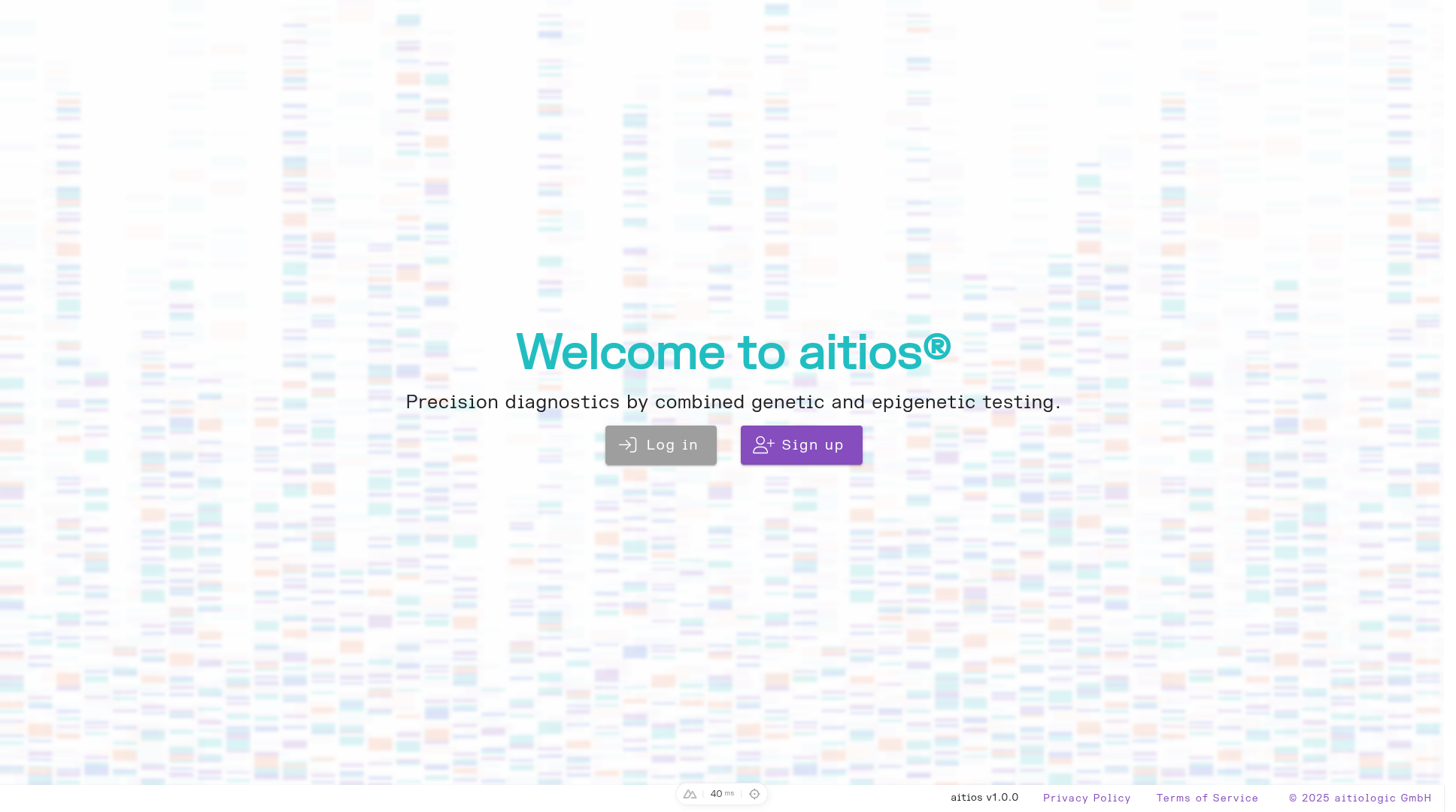
The landing page.
Click the “Login” button in the center of the screen to navigate to the login screen.
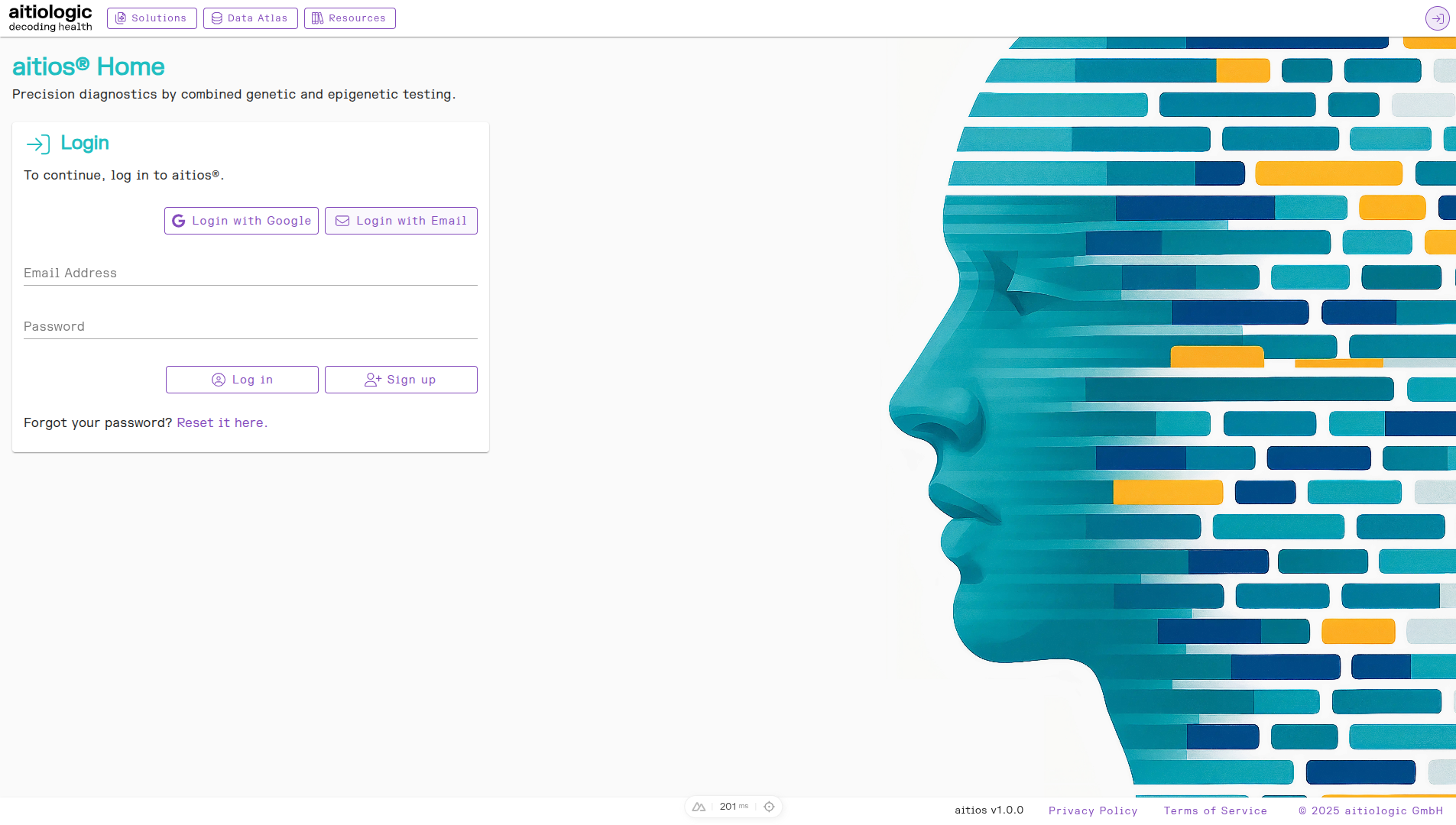
The login page with Email login selected.
Users may either create a dedicated account with aitios® by providing their email address, desired username, and a password, or log in directly with a Google account.
Creating a Google-linked Account
On the login page, click “Sign in with Google”. Follow the instructions to sign in with your Google account.
Creating a Dedicated Account
On the login page, click the “Sign up” button to navigate to the signup screen.
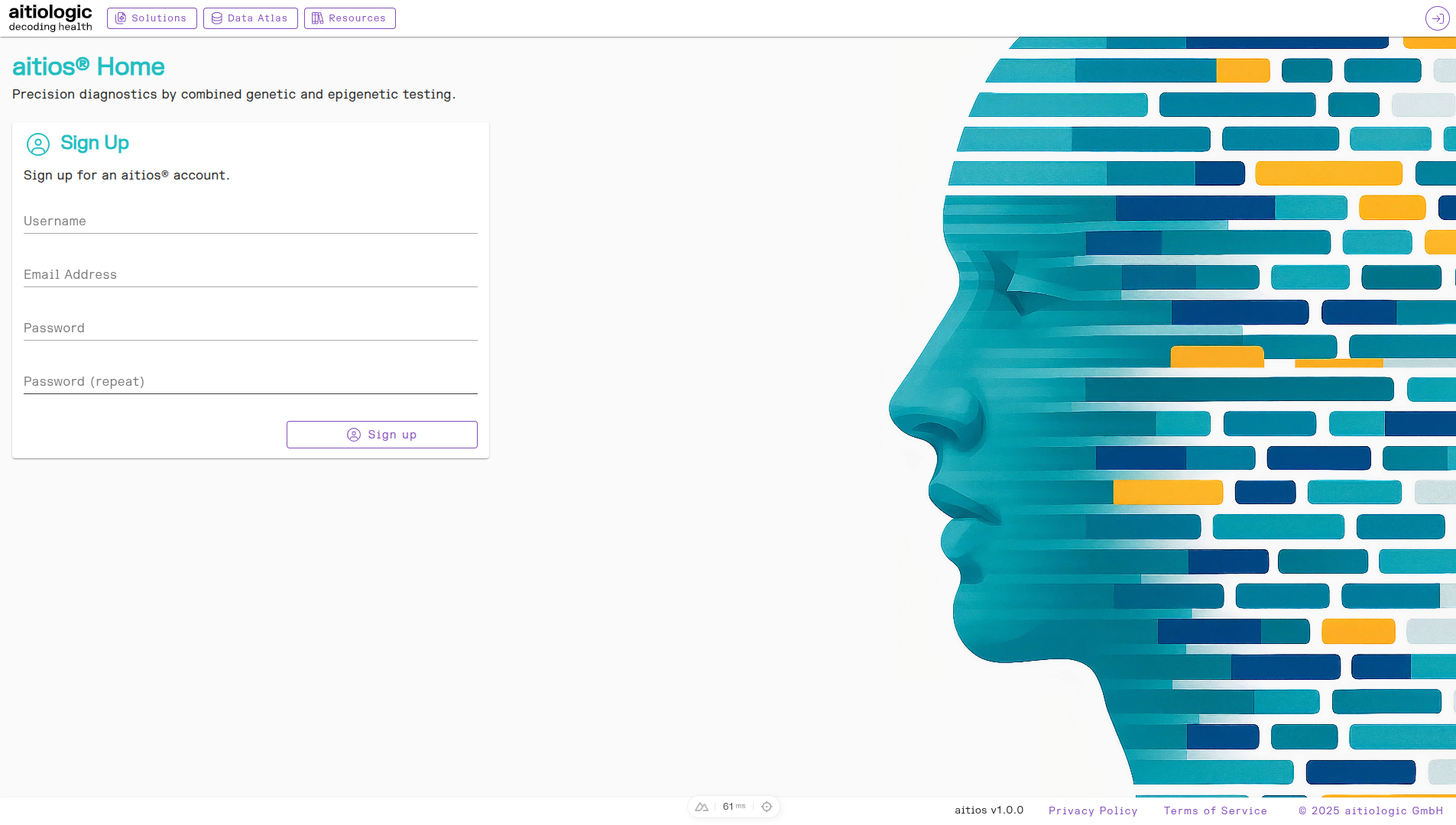
The signup page.
Fill out the required fields: email address, desired username and password (including password repeat). Note the following restrictions on possible passwords:
>= 8 characters
at least 1 upper case character
at least 1 numeral
After filling out the form, click the “Sign up” button. Check your email inbox for a validation link needed to activate the newly created user account, and follow the link to the Login screen. Enter your credentials and click the “Sign in” button.
Further Steps
After login with a newly created account, the aitios® start page is shown. To continue, read and accept the aitios® Terms of Service (ToS). After accepting the ToS, basic functionality is unlocked and the created user is given Guest permissions. Guest users may update their newly created user profile, and change account settings.
To see account settings and request an upgrade to full User status, click the turquoise button containing username initials (or your Google account avatar, depending on sign-in method) in the top right of the screen.
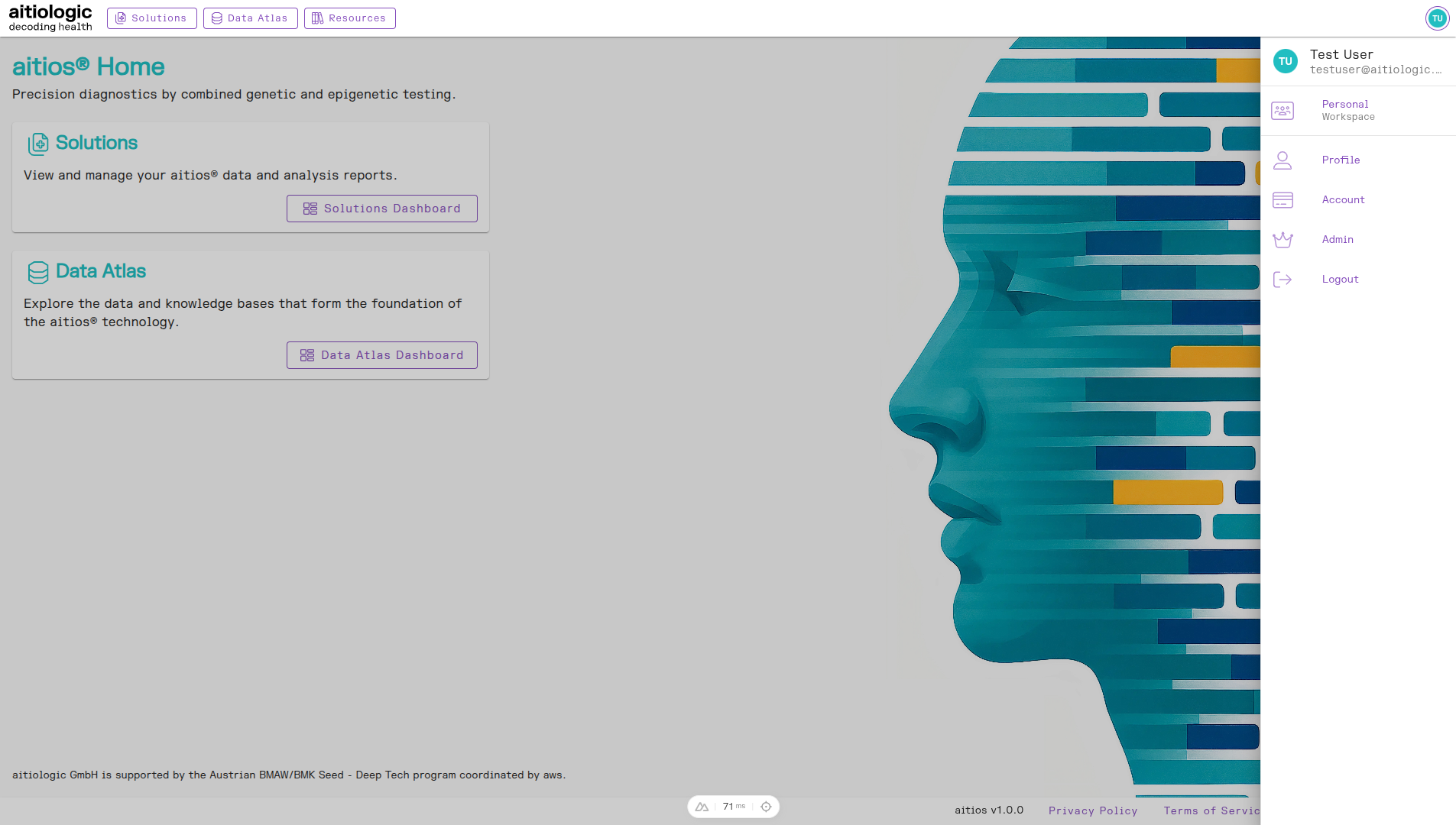
The start page with the right-hand settings menu bar open.
Click on “Account” to navigate to the account settings page. The current service plan (Guest) is highlighted. To upgrade to another service plan (User or Enterprise), get in contact with the aitiologic team. Start writing an email by clicking the desired service plan. The aitiologic team is committed to servicing requests within 2 business days.
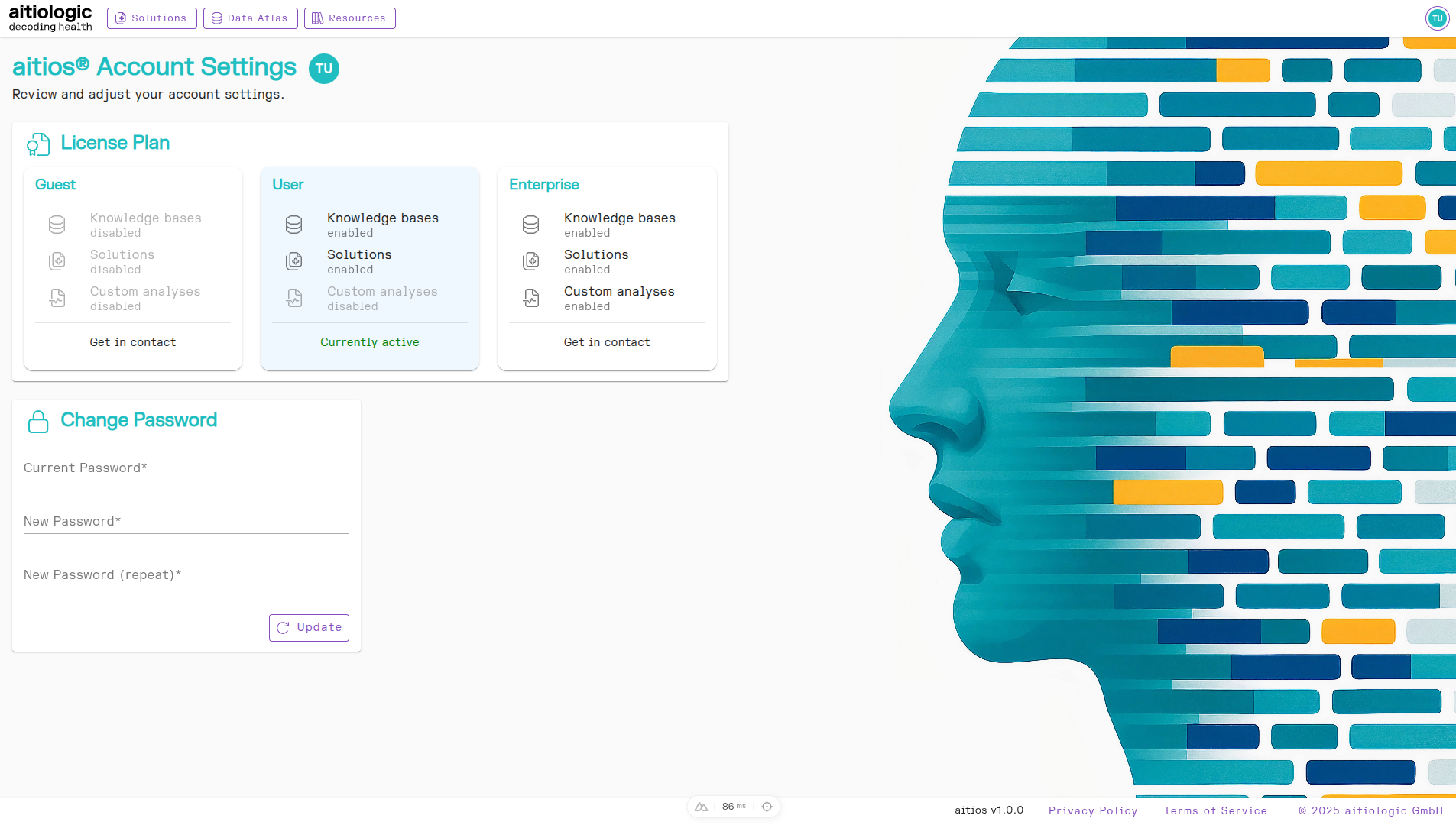
The account settings page.